See LinkedIn Profile Anonymously: Methods That Work
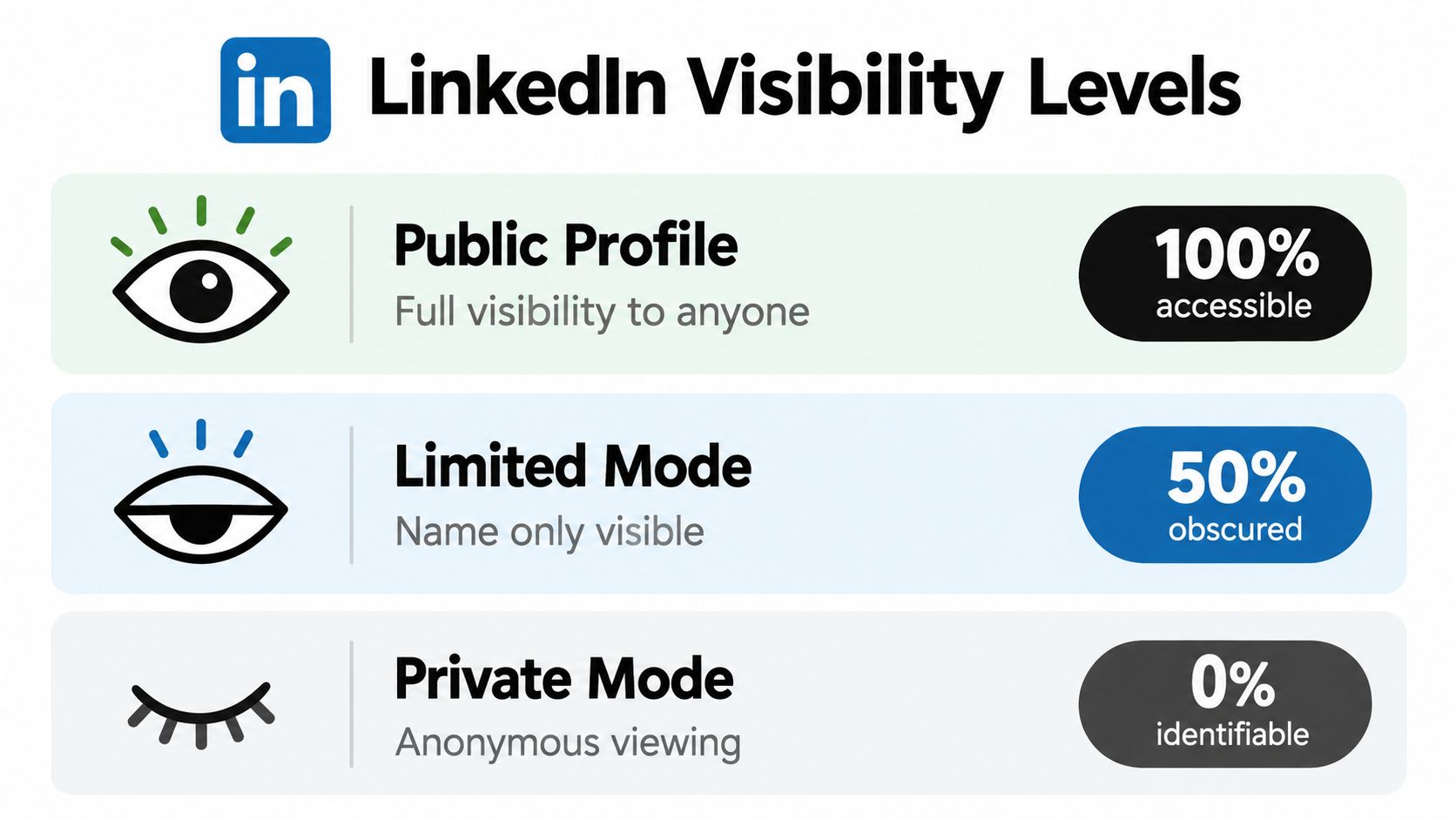
LinkedIn offers three distinct visibility modes when you browse profiles, full identity, semi-private profile characteristics, and true private mode. Only the third hides your name completely.
That distinction matters when you’re researching a prospect, competitor, property manager, or commercial client. The wrong setting can reveal your name, headline, company, or school before you’ve decided to make contact. LinkedIn’s own privacy controls let you browse without exposing your identity, but anonymous viewing always involves a trade-off between privacy and the amount of profile information you can access.
For a home service business owner, the practical rule is simple: use LinkedIn’s native Private mode when you’re signed in, and use public access only when you’re comfortable sacrificing depth. Avoid tools that ask for your login credentials or promise access LinkedIn itself doesn’t provide.
Table of Contents
- The Three Levels of LinkedIn Privacy
- Comparing Anonymous Viewing Methods
- Browsing Without Logging In
- Third-Party Viewer Tools Risks
- Legal and Ethical Considerations
- Better Alternatives for Lead Research
The Three Levels of LinkedIn Privacy
Most instructions about how to see a LinkedIn profile anonymously skip the detail that causes the trouble. LinkedIn has three exact profile-viewing modes:
- Your name and headline
- Private profile characteristics
- Private mode
These settings control what the profile owner sees when you open their profile. They don’t make the profile owner invisible to you. They change the identity information attached to your visit, as documented in LinkedIn’s explanation of private browsing modes.
Full identity disclosure
The default setting shows your name, headline, and other identifying profile information to the person whose page you viewed. This setting works well when you’re deliberately networking, applying for work, or making your business visible. It’s a poor choice when you’re checking a prospect before a sales conversation without being detected.
A homeowner or facilities manager may recognize your company from your headline. A competitor may see your name in their visitor list. You don’t need to be connected for that visit to create an introduction you didn’t intend.
Semi-private profile characteristics
The middle option hides your name but leaves selected characteristics visible, such as your company, industry, or school. LinkedIn calls this Private profile characteristics. It provides partial privacy, not full anonymity.
That distinction matters in contractor prospecting. If your profile identifies you as the owner of a roofing company in a specific service area, a prospect may still work out who visited. A competitor who knows the local trade community can often identify a company from limited descriptors. Use this mode only when that level of traceability is acceptable.
True Private mode
Private mode removes the identifying details from the visit. The profile owner sees a generic entry such as “LinkedIn Member” or “This person is viewing profiles in private mode.” LinkedIn says that no other information is shared with the profile owner in this mode.
To activate it, open LinkedIn and follow this path:
- Select Me from the top navigation.
- Open Settings & Privacy.
- Choose Visibility.
- Select Profile viewing options.
- Choose Private mode.
Change the setting before opening the target profile. The setting doesn’t retroactively hide visits you’ve already made. If you’re researching a large account list, switch modes first, then begin browsing.
Practical rule: Semi-private mode protects your name from casual viewers. Private mode protects your identity from the profile owner.
Private mode has a cost. LinkedIn says a Basic account that browses privately can’t see who viewed its own profile, while Premium users can still see profile-viewer information from the last 90 days. That trade-off is part of LinkedIn’s privacy design, so review the consequences before you start prospect research. For a broader overview of privacy considerations around visitor identification, see Pipeline On’s privacy guidance.
Comparing Anonymous Viewing Methods
Different methods leave different amounts of information behind. Treat “anonymous” as a description you need to verify, not a promise made by a browser extension or viewer website.
| Method | What the profile owner sees | What you can access | Practical assessment |
|---|---|---|---|
| LinkedIn Private mode | Generic private-mode visitor label | Signed-in profile information allowed by LinkedIn | Safest native option |
| Semi-private mode | Partial company, school, or other characteristics | Signed-in profile information | Private from name, not from inference |
| Browser incognito window | Depends on your LinkedIn session | Similar access to your normal browser | Doesn’t hide a logged-in identity |
| Logged-out public URL | Usually no named LinkedIn visitor account | Public profile details only | Useful for basic research |
| Search result preview | No LinkedIn account attached to the search | Snippet-level public information | Limited and often stale |
| Third-party viewer | Depends on the service and its collection method | Inconsistent or incomplete data | Security and account risk |
A browser’s incognito or private window only limits local browser history, cookies, and session persistence. If you log in to LinkedIn inside that window, LinkedIn can still associate your profile visit with your account. Incognito is useful for separating sessions, not for concealing your identity from LinkedIn.
Logged-out browsing works differently. When you open a public LinkedIn URL without signing in, you may see a public name, headline, job title, or other details the member has made available outside LinkedIn. The visit isn’t attached to your LinkedIn account, but the page can still stop at a login wall.
Search engine results can expose a public snippet without sending you through a normal signed-in profile visit. Search previews are incomplete, and cached content can be outdated or unavailable. Don’t treat a result snippet as a substitute for a current profile.
The most common coverage gap is the failure to separate true anonymity from partial privacy. This explanation of LinkedIn’s three visibility states makes the practical issue clear: the question isn’t only whether a visit is called anonymous. You need to know whether the owner can see your identity, infer your company, or see nothing beyond a generic private-mode label.
For a contractor researching a commercial prospect, choose based on the job. Use Private mode for a detailed signed-in review. Use logged-out access for a quick public check. Skip third-party services when the only benefit is convenience.
Browsing Without Logging In
Logged-out browsing gives you the cleanest separation from your LinkedIn identity, but it also gives you the least complete view. Start with the person’s name and company in a search engine, then open the public LinkedIn result in a browser where you aren’t signed in.
You can also open a known public profile URL directly. A public page may show the person’s name, headline, and job title, along with other details the member has chosen to expose publicly. Experience details, education, connections, posts, activity, and other sections may remain restricted. LinkedIn can also redirect you to a sign-in screen, particularly after repeated browsing.
A workable logged-out process
- Search the person’s full name, company, and “LinkedIn.”
- Check the profile URL and public preview for a matching role and employer.
- Open the result while signed out of LinkedIn.
- Record only information that appears publicly.
- Stop when LinkedIn presents a login wall instead of trying to bypass it.
Search engines can help you compare public indexing. Google, Bing, and other search engines may display different snippets because they index pages at different times and may expose different public fields. Use the result pages as a research aid, not as proof that the full profile remains publicly available.
Public access and private mode solve different problems. Logged-out browsing avoids attaching the visit to your LinkedIn account, while Private mode lets you use LinkedIn’s signed-in features without disclosing your identity.
Search caches deserve caution. A cached or stored search preview may show text that was previously public, but availability and freshness vary. Don’t assume a cached result includes the current profile, and don’t use an old snippet to make a sensitive business decision.
The boundary is straightforward. A logged-out visitor can sometimes see public details without appearing as a named LinkedIn member, but that doesn’t grant access to restricted profile sections. Recent guidance on logged-out access and private mode also separates public-profile access from third-party viewer tools, which many guides wrongly group together.
Use this approach for a quick background check before calling a property manager or reviewing a commercial referral. If you need a complete work history, mutual connections, or current activity, use LinkedIn’s native Private mode instead of trying to force more information from a guest session.
Third-Party Viewer Tools Risks
Third-party LinkedIn viewer tools sell convenience. Their usual pitch is simple: paste a profile URL, receive information, and leave no trace. The problem is that the service sits between you and LinkedIn, so you don’t control what it records, how it obtains the data, or whether its results are accurate.
A tool that asks for your LinkedIn username and password is an immediate stop sign. Your credentials can expose your account, messages, connections, saved searches, and business contacts. Browser extensions create another risk because installed permissions may let them read page content, observe browsing activity, or inject scripts into LinkedIn.
LinkedIn’s official privacy system already provides a native way to browse privately. It also makes clear that visitor details depend on settings, subscription tier, and viewing context. Premium viewers can access profile visitor data for up to 365 days, while Basic accounts have a 90-day window, but Premium users still can’t identify people who browse in Private mode. Those visits appear as anonymous or remain hidden, as explained in LinkedIn’s visitor-visibility guidance.
Red flags worth acting on
- Credential requests: Never enter your LinkedIn password into a viewer site.
- “Full access” promises: A service cannot legitimately guarantee restricted profile data that LinkedIn does not expose publicly.
- Unclear ownership: Avoid tools lacking a clear company identity, privacy policy, and support channel.
- Forced extensions: Do not install an extension merely to retrieve information available through LinkedIn’s own settings.
- Automation claims: High-volume scraping can create unusual activity associated with your account or device.
Third-party tools also produce weak intelligence. Profiles change, public pages differ from signed-in views, and automated services may return stale names, partial employment records, or unrelated people with similar names. You can waste more time validating the output than you would have spent using a public search and a company website.
For contractors, the account risk outweighs the modest convenience. Losing access to a LinkedIn account can disrupt recruiting, vendor research, referrals, and business development. If you’re evaluating how anonymous activity is handled across broader marketing systems, this overview of anonymous user identification analytics provides useful context without requiring you to hand credentials to an unknown viewer.
Legal and Ethical Considerations
Anonymous profile research is usually a question of how you use public information, not whether you’re allowed to learn that a professional exists. Reading a public headline before a sales call is different from impersonating someone, bypassing access restrictions, scraping at scale, or using private information for an unrelated purpose.
LinkedIn’s privacy architecture allows a member to choose public, semi-private, or fully private browsing. The profile owner may receive a full identity, a partial descriptor, or a generic anonymous label. LinkedIn also distinguishes between the viewer history available to Basic and Premium accounts, with Basic accounts receiving the most recent viewers within a 90-day rolling window and Premium accounts accessing a history of up to 365 days, according to LinkedIn’s help center.

Keep prospect research professional
A good contractor uses LinkedIn to prepare, not to pressure. Check a prospect’s public role, company, and relevant business context. Then make a direct introduction through an appropriate channel and explain why you’re contacting them.
Avoid collecting personal details that have no connection to the service conversation. Don’t create a dossier on a homeowner, reuse information outside its original context, or imply that you know about private activity. Competitive research should focus on public company positioning, service offerings, hiring signals, and market presence.
Professional boundary: Anonymous browsing can protect a first research step. It shouldn’t become a substitute for consent, transparency, or a legitimate business reason.
The safest workflow is to use LinkedIn’s own privacy settings, respect login walls, and avoid automated collection that circumvents platform controls. Keep records focused on business relevance, protect any contact information you lawfully obtain, and follow the rules that apply in your jurisdiction and industry.
For a local HVAC or plumbing company, that may mean reviewing a facilities director’s public background before asking for a maintenance conversation. It doesn’t mean contacting someone repeatedly because you found a personal detail through an unrelated source. Trust compounds through referrals, and a prospect who feels watched is unlikely to refer your crew.
Better Alternatives for Lead Research
LinkedIn helps you understand who a person is professionally. It doesn’t automatically tell you whether that person is ready to hire your company, which property they manage, which service page they visited, or how to contact them through a channel they actually monitor.
For home service companies, verified first-party website intelligence is usually more actionable than anonymous profile research. A visitor who reaches your roofing replacement page has already shown service relevance. A LinkedIn visitor may be browsing, recruiting, checking a connection, or researching the market.
Use LinkedIn for context, not identification
Research a commercial prospect’s role and company through LinkedIn, then validate the business through its website, public directories, and official contact channels. Keep the outreach specific. Mention the type of property or service problem you solve, not the fact that you viewed their profile anonymously.
A useful operating sequence looks like this:
- Research the account: Confirm the company, role, and likely business need.
- Create a relevant offer: Prepare a maintenance review, replacement estimate, inspection, or service plan that fits the account.
- Capture active demand: Monitor visitors who reach high-intent pages on your website.
- Route the opportunity: Send qualified contact details into your existing sales or field-service workflow.
- Follow up with restraint: Use email, SMS, or a direct call according to the contact’s permissions and your normal sales process.
Pipeline On’s lead-identification workflow is designed for the website side of this process. Its script can identify names, addresses, and emails associated with visitors who browse a home service website without submitting a form, then sync those profiles with tools such as ServiceTitan, Housecall Pro, Jobber, HubSpot, and Pipedrive. That gives your team a contactable business record instead of an inferred LinkedIn identity.
Build a handoff your crew can use
The value comes from connecting research to action. Your estimator needs the service address, your office needs the contact channel, and your salesperson needs the page or offer that created interest. A profile view alone supplies none of those reliably.
If your team needs additional outbound capacity, an SDR for hire can help turn researched accounts into organized outreach while your technicians stay focused on jobs. Keep the responsibilities separate: LinkedIn supplies professional context, your website captures intent, and your CRM manages follow-up.
For a contractor, that division prevents a common mistake. You stop treating every anonymous signal as a lead and start prioritizing prospects who have demonstrated a relevant need and can be reached through verified information.
Pipeline On helps home service contractors turn anonymous website visits into contactable prospects with names, addresses, and emails, then route those leads into the systems your team already uses. Visit Pipeline On to see how it can connect LinkedIn-informed prospect research with real website activity and follow-up.
Written by
Pipeline Research Team